Mobile Cover
Add a Cover Block
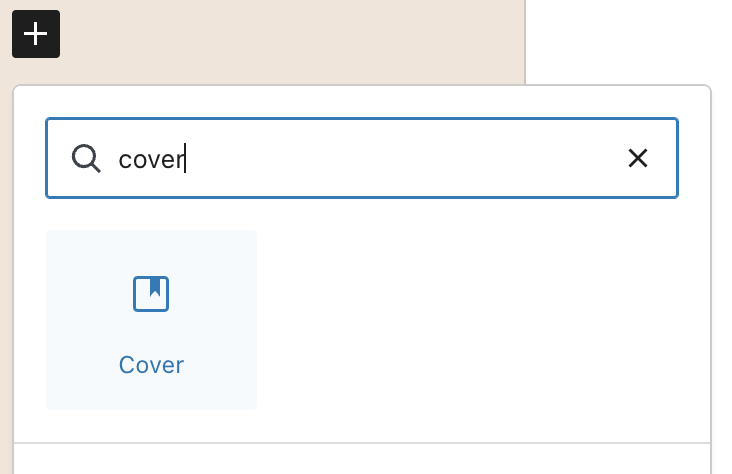
Search for “Cover” in the block inserter and add it to your page.
Set Desktop Background Image
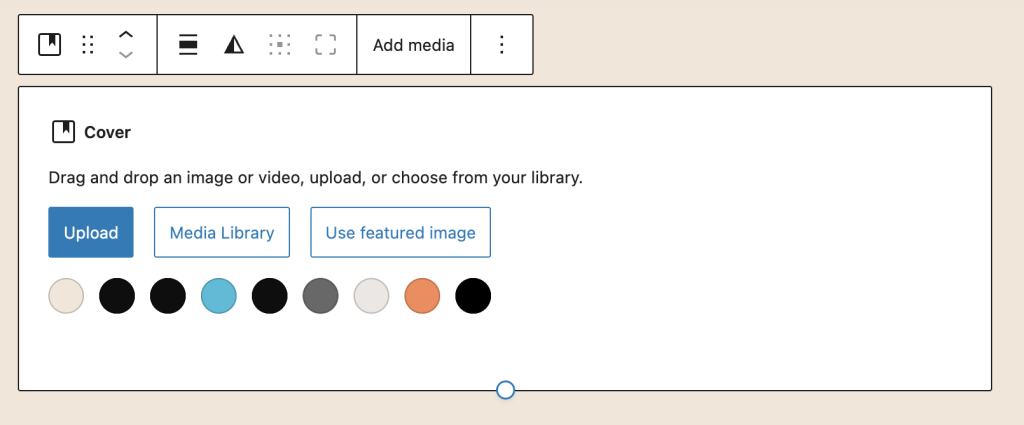
Important: You must set a desktop background image first. The mobile image works as an alternative to the desktop image, not a replacement.
Upload Mobile Cover Image
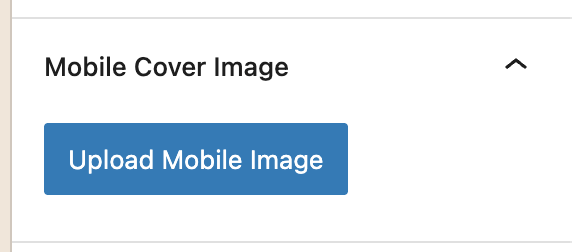
With the Cover block selected, find the “Mobile Cover Image” panel in the right sidebar:
- Click “Upload” or “Select from Media Library”
- Choose your mobile-optimized image
- The image will display on screens 781px or narrower
Adjust Mobile Settings
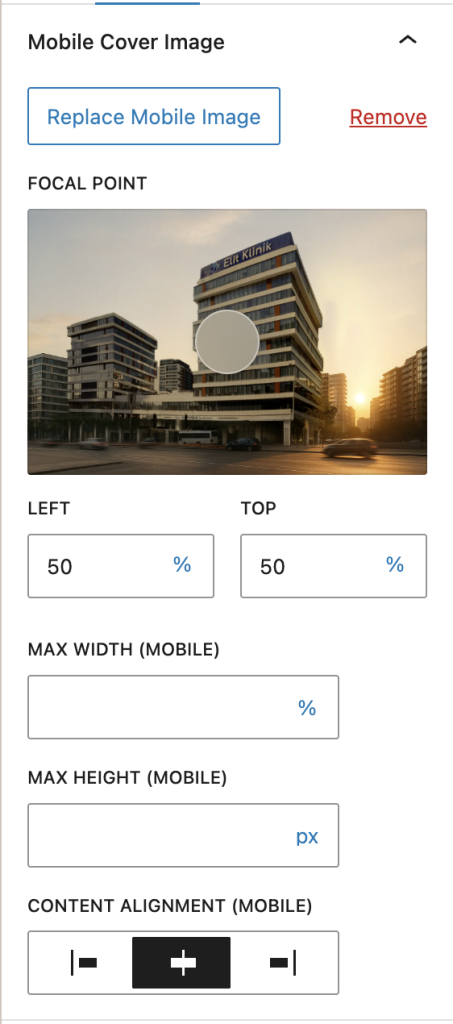
Once your mobile image is uploaded, additional controls appear in the Mobile Cover Image panel:
Mobile Settings Explained
Mobile Focal Point
Control which part of your mobile image stays visible when the cover is resized:
- Click anywhere on the image preview
- Drag the focal point to adjust positioning
- Independent from desktop focal point (can be different)
Focal Point Best Practices
Portraits: Focus on the face (upper center)
Text overlays: Focus on the area where text appears
Landscapes: Center the focal point (default 50% 50%)
Mobile Width
Control the maximum width of the cover block on mobile devices:
- Leave empty for 100% width (default)
- Enter a value like “400px” for a fixed width
- Use percentages like “90%” for relative width
Mobile Height
Set the height of the cover block on mobile devices:
- Leave empty to use image’s height
- Enter “300px” for a fixed height
- Use viewport units like “50vh” (50% of viewport height)
Image Alignment (Horizontal)
Control how content inside the cover aligns horizontally on mobile:
- Left – Align image to the left edge
- Center – Align image to center (default)
- Right – Align image to the right edge
Previewing Mobile Changes
See your mobile image and settings in real-time while editing:
- Click the Cover block to select it
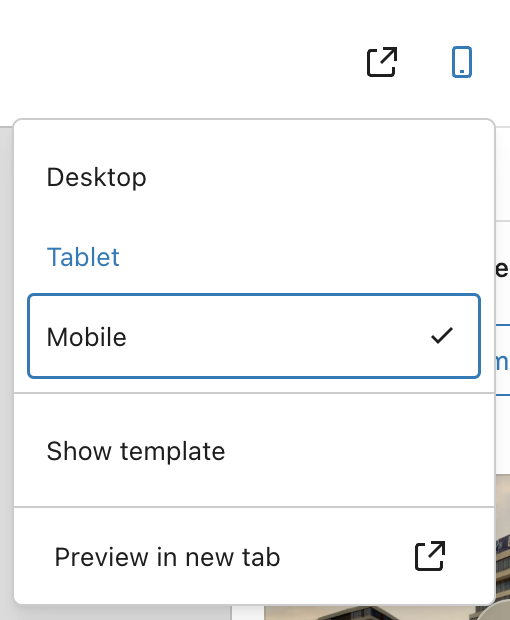
- Click the Mobile icon in the WordPress editor toolbar (top-right)
- The preview switches to mobile image automatically
- Adjust settings and see changes instantly
Mobile Breakpoint
The extension uses WordPress’s standard responsive breakpoint:
- Mobile – Screens 781px or less (mobile image displays)
- Desktop – Screens 782px or more (desktop image displays)
This matches the WordPress admin bar breakpoint for consistency.
Examples
Hero Section with Portrait & Landscape
1. Add Cover block → Upload landscape desktop image (1920x600px)
2. Upload vertical mobile image (800x1200px)
3. Desktop focal point: Center (50% 50%)
4. Mobile focal point: Upper center (subject's face)
5. Result: Optimized images for both orientations
Short Mobile Cover with Full-Width Desktop
1. Desktop image: Full-width banner (100vh height)
2. Mobile image: Compact banner (400px height)
3. Set Mobile Height: "400px"
4. Set Content Alignment: "Center"
5. Result: Tall desktop cover, compact mobile cover
Centered Content on Mobile
1. Desktop: Cover with left-aligned content
2. Upload mobile image
3. Set Mobile Width: "90%" (some margins on sides)
4. Set Content Alignment: "Center"
5. Result: Centered content layout on mobile only
Tips & Best Practices
- Image orientation – Use portrait/vertical images for mobile, landscape for desktop
- Focal points – Set different focal points for desktop vs mobile based on composition
- Height control – Use viewport units (vh) for proportional mobile heights
- Always set desktop image first – Mobile image is an alternative, not a replacement
Quick Troubleshooting
Mobile image not showing on frontend?
→ Make sure you have a desktop background image set
→ Check that the mobile image URL is saved in block attributes
Can’t see Mobile Cover Image panel?
→ Make sure a Cover block is selected
→ The panel appears in the right sidebar (Inspector Controls)
Wrong image showing on mobile?
→ Check your screen size – breakpoint is ≤781px
→ Preview at mobile width (≤781px) to see the mobile image
Focal point not working?
→ The mobile focal point only applies on mobile viewports (≤781px)
→ Switch to mobile preview to see mobile focal point in action
→ Desktop view uses the desktop focal point
Mobile height not applying?
→ Check that a value is entered (e.g., “400px” or “50vh”)
→ Mobile height only applies at the 781px breakpoint
→ Leave empty to use desktop height settings
Leave a Reply