Author: Daniel Stopka

  • Highlight Format — User Guide

    Our Highlight Format extension enhances the existing Gutenberg Highlight (background-color) feature by letting you add:

    • Padding around highlighted text
    • Border radius for rounded highlight shapes
    • Support for different units (px, em, %, …)
    • Independent values for each side (top / right / bottom / left)

    This lets you create more visually appealing highlights, such as pill-shaped markers, rounded labels, or emphasized badges inside text content—all using standard RichText formatting.

    How to Use Highlight Format

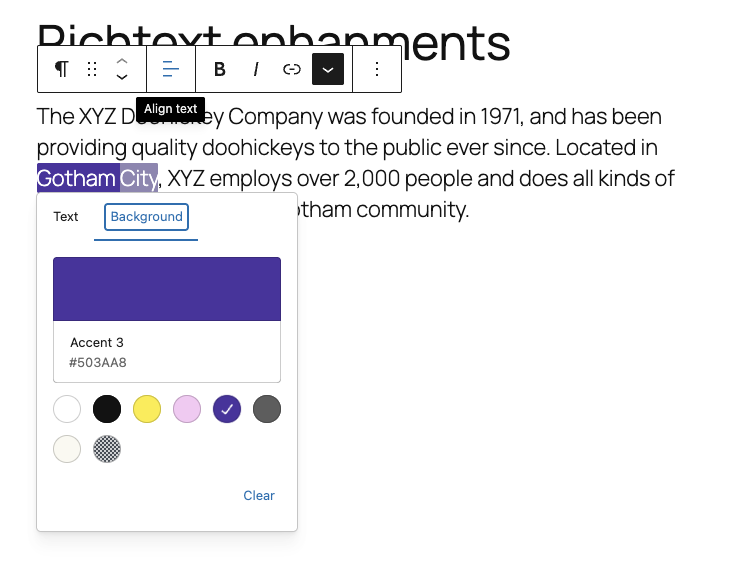
    Highlight Some Text

    1. Select a word or phrase inside a Paragraph block

    2. Open the More menu (⌵) in the inline toolbar

    3. Choose Highlight

    4. Pick any highlight background color
    Highlight Some Text

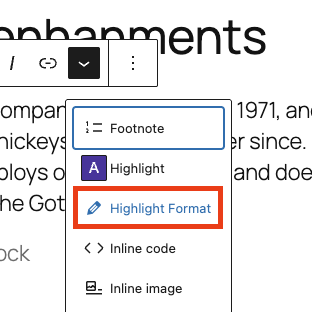
    1. Select the same highlighted text

    2. Open the More menu (⌵) again

    3. Click Highlight Format
    4. Adjust Padding and or Border Radius
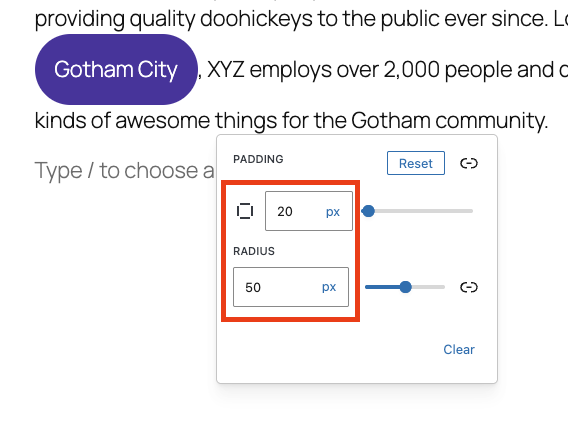
    5. Close the Popover

  • Custom List Item Icon

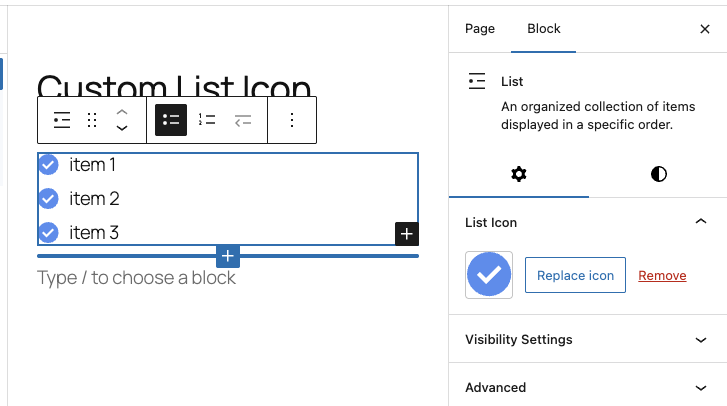
    Our Custom List Icon extension enhances the standard Gutenberg List block by allowing you to replace the default bullet style with your own uploaded icon (PNG/SVG).

    Once an icon is applied, all list items inside that specific List block will display the chosen icon automatically — both in the editor and on the frontend.

    This is especially useful for:

    • Feature lists
    • Pricing features
    • Checklists
    • Custom branding
    • Icons that match your design system

    How to Use the Custom List Icon

    Follow these simple steps:

    1. Insert a Standard List Block

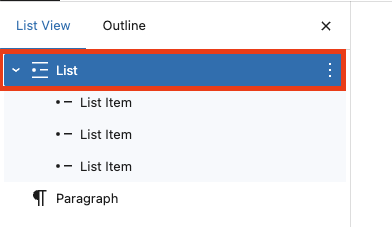
    2. Select the Parent List Block

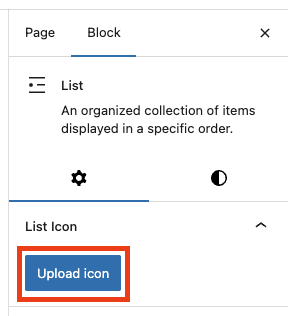
    3. Upload Your Custom Icon

    4. Done