Start Using Visibility Controls in 3 Steps
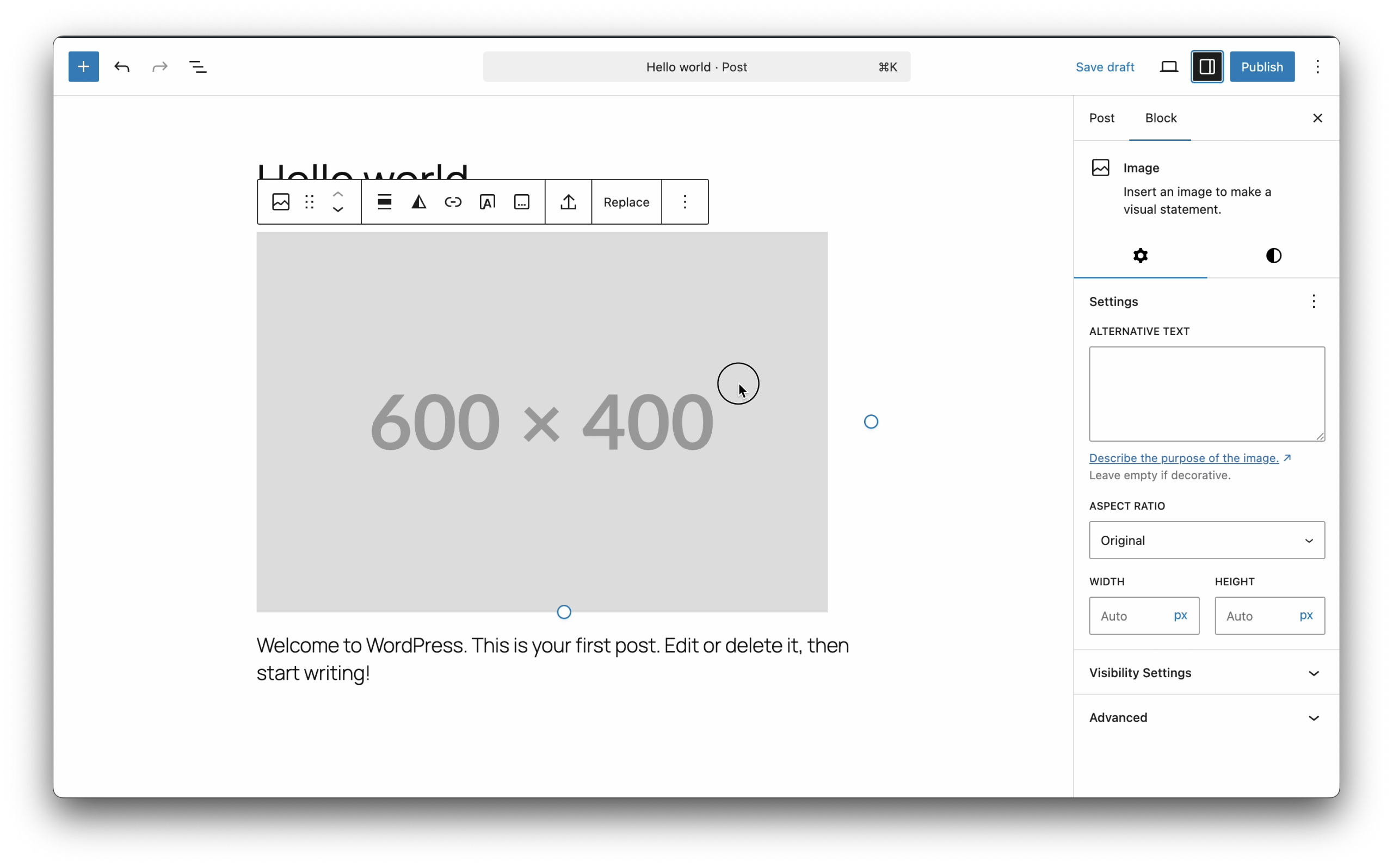
Step 1: Select Your Block
Click on any block in your page or post to select it.
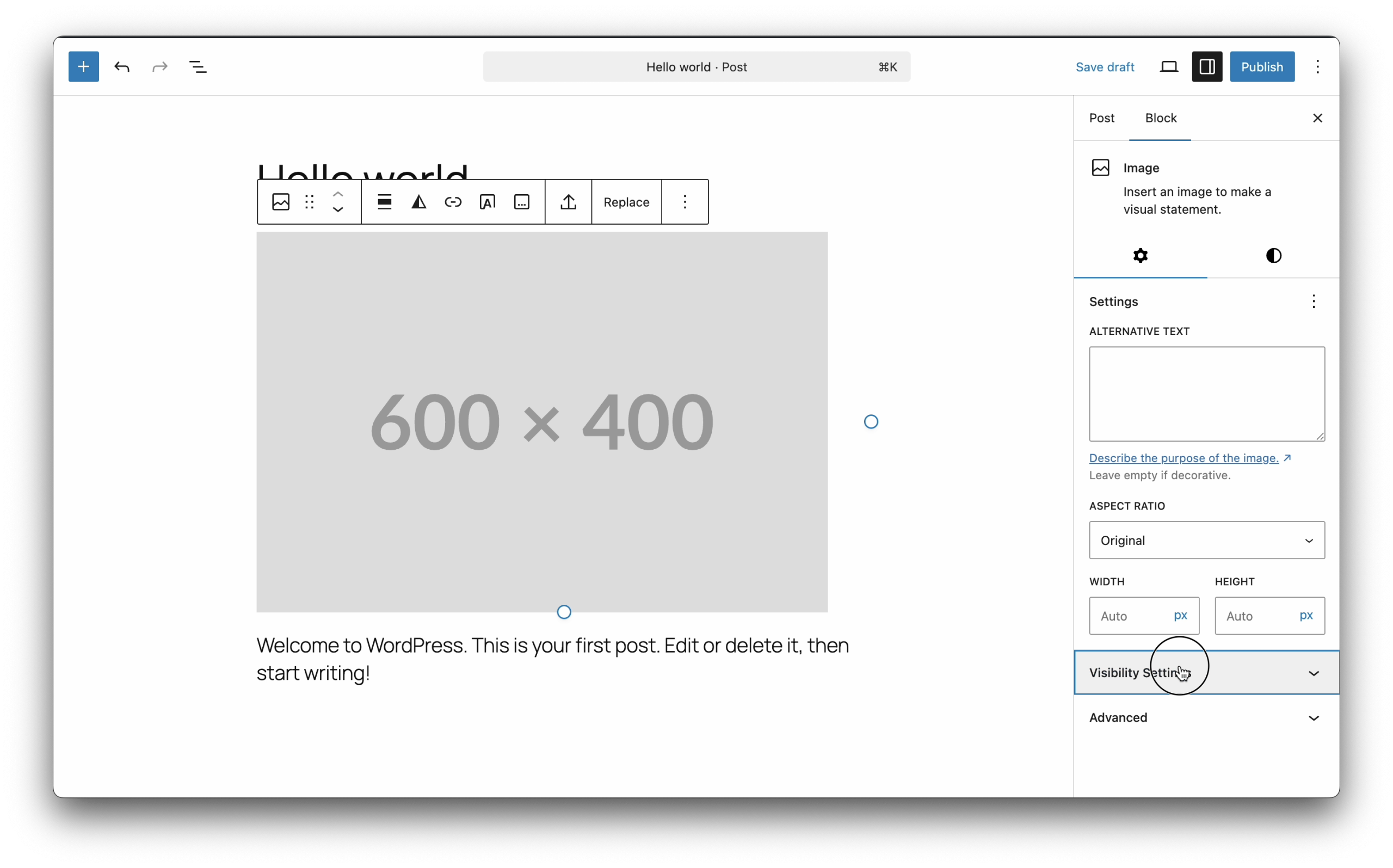
Step 2: Find Visibility Settings
Look in the right sidebar for “Visibility Settings” panel and click to expand it.
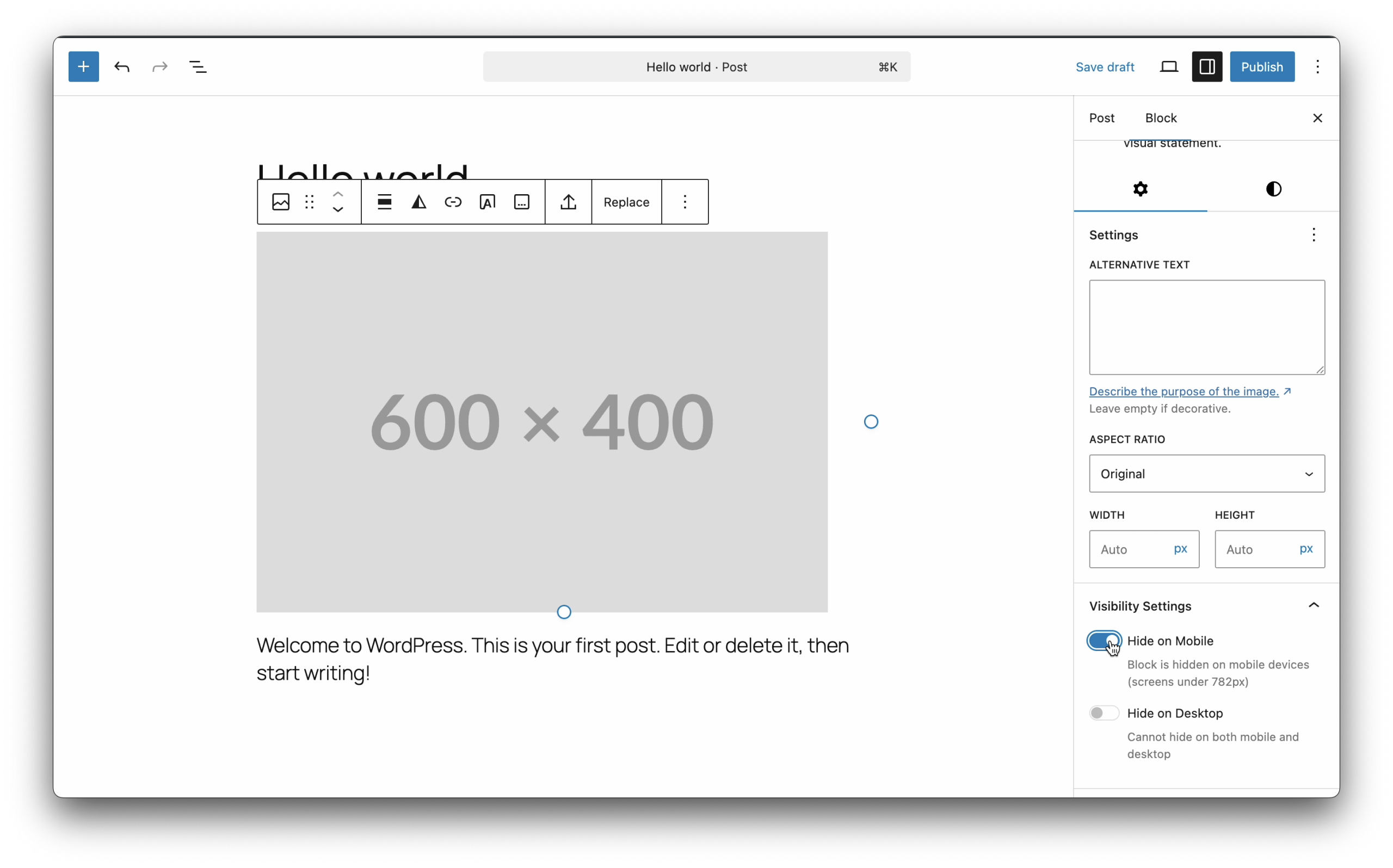
Step 3: Choose Your Visibility
Toggle the switches to control where your block appears:
- Hide on Desktop – Block only shows on mobile
- Hide on Mobile – Block only shows on desktop
Examples
Show Different Images for Mobile vs Desktop
1. Add first image block → Set "Hide on Mobile" → Shows on desktop only
2. Add second image block → Set "Hide on Desktop" → Shows on mobile only
Create Mobile-Only Call Button
1. Add button block with phone number
2. Toggle "Hide on Desktop" ON
3. Button only appears on mobile devices
Hide Complex Table on Mobile
1. Select your table block
2. Toggle "Hide on Mobile" ON
3. Add a simple list alternative for mobile users
Key Points to Remember
- Works with ALL blocks – Paragraphs, images, columns, everything!
- Can’t hide on both – System prevents hiding on all devices
- 782px breakpoint – Mobile = 781px or less, Desktop = 782px or more
Quick Troubleshooting
Can’t see Visibility Settings?
→ Make sure a block is selected and sidebar is open
Block not hiding?
→ Save/publish your changes and clear browser cache
Leave a Reply